Configure your company's identity provider (an OIDC-compatible IdP such as Google Workspace) on a canal, and organization members on your allowed domain can log in with their company accounts to approve connections. Members do not need WireCanal accounts. When someone leaves, the company simply disables their account — and their connection stops automatically.
Normally, only the canal owner can approve connections to a canal. That is fine for personal use, but if "all 50 people in the department want to use the in-house MCP from their own ChatGPT", the owner would end up clicking approval for every single one.
With organization IdP integration, the login on the connection-consent screen switches to your company's Google login, and members on the allowed domain (e.g. example.co.jp) can approve connections by themselves.
wirecanal.json, as alwaysOrganization IdP integration is available on the Lite plan or above. You also need a working MCP canal (if you do not have one yet, start with a guide such as Connect with ChatGPT), an OIDC-compatible company identity provider (Google Workspace works as is), and the AI service you use (e.g. ChatGPT) enabled under the canal's supported services.
For Google Workspace, create one OAuth client under "Credentials" in the Google Cloud console (in some companies this is a task for the IT department; it is a one-time setup, not needed again when adding members).
Google Cloud console → APIs & Services → Credentials → "Create OAuth client ID". Choose Web application as the application type; the name can be anything (e.g. "WireCanal org IdP integration").
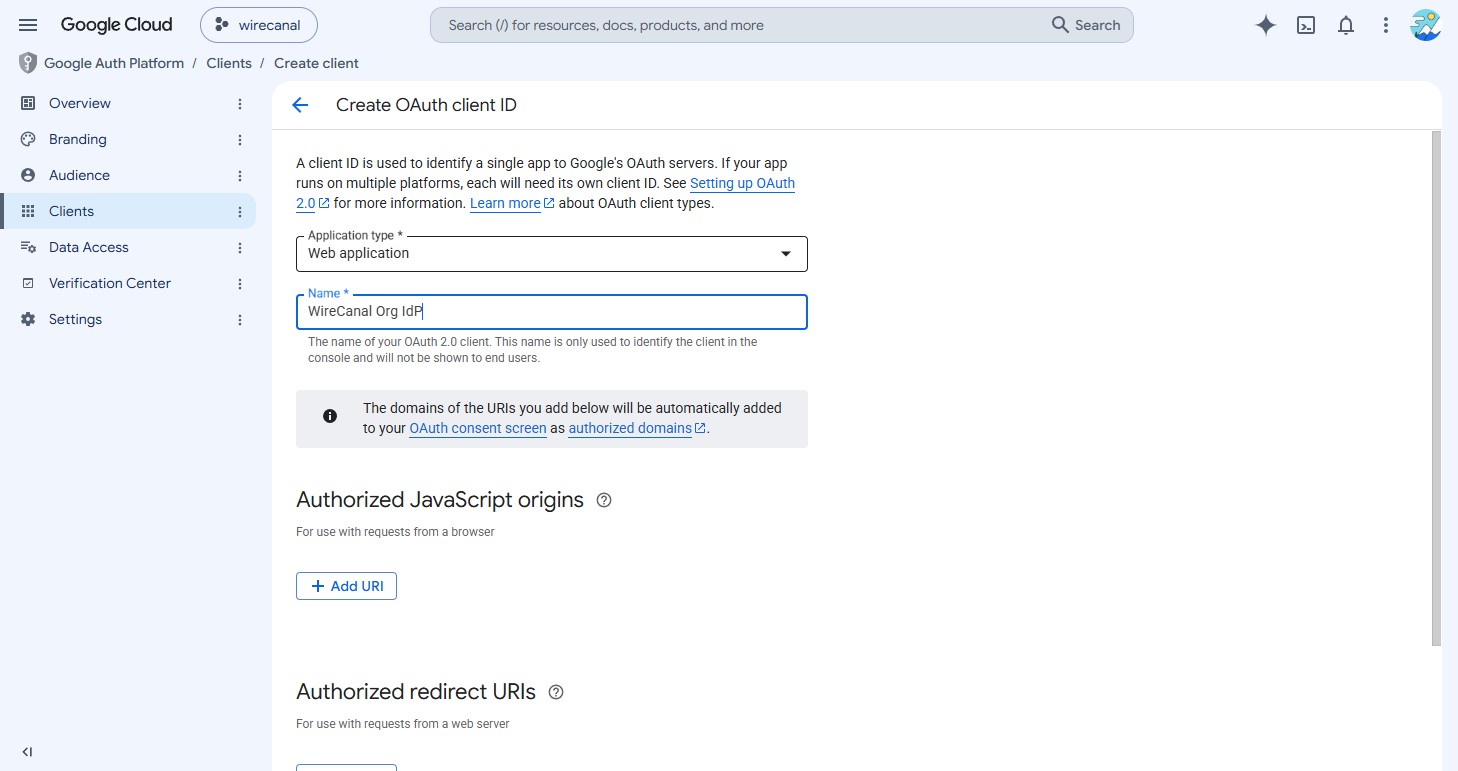
Add the following single line to "Authorized redirect URIs" and click "Create" (this value is also shown, with a copy button, on the WireCanal settings screen).
https://app.wirecanal.com/oauth/idp/callback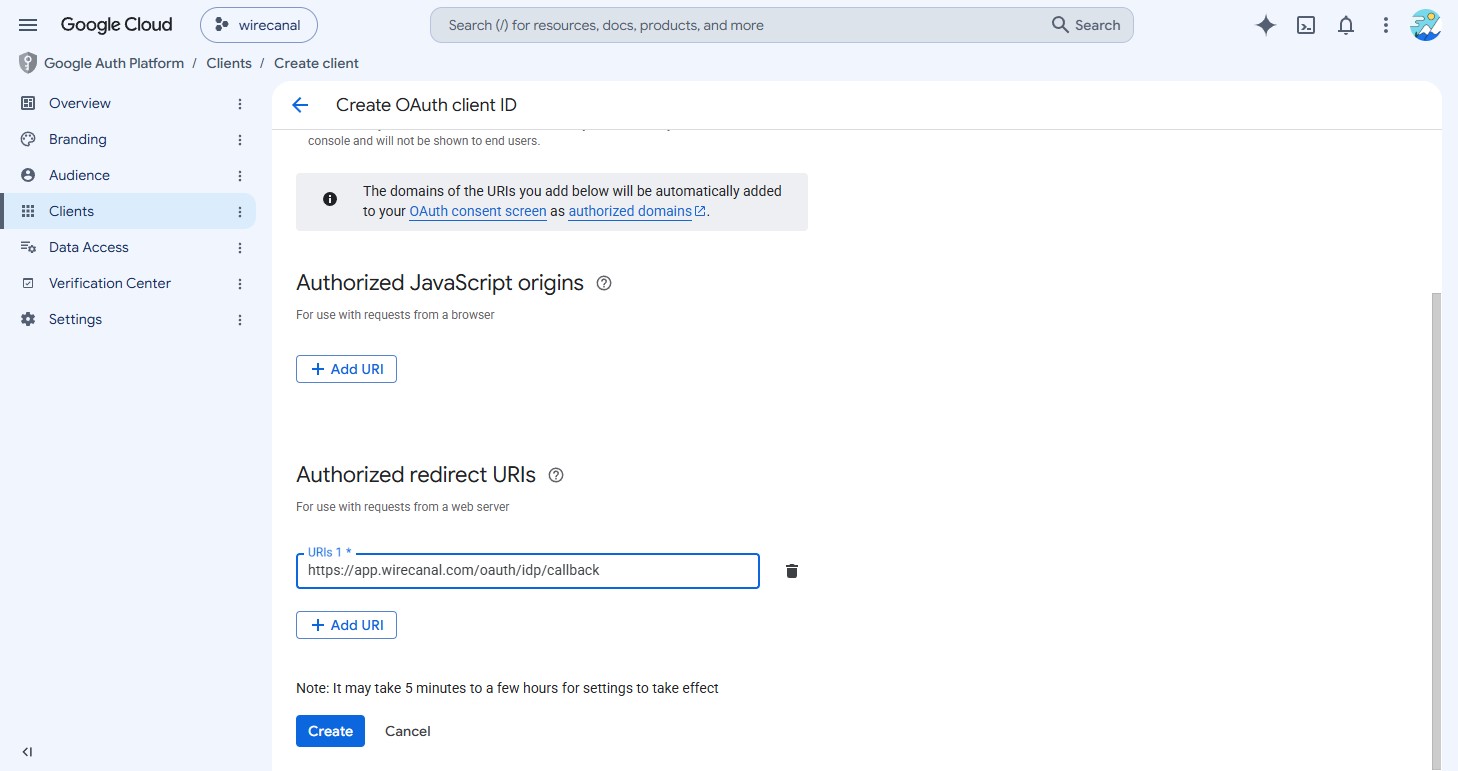
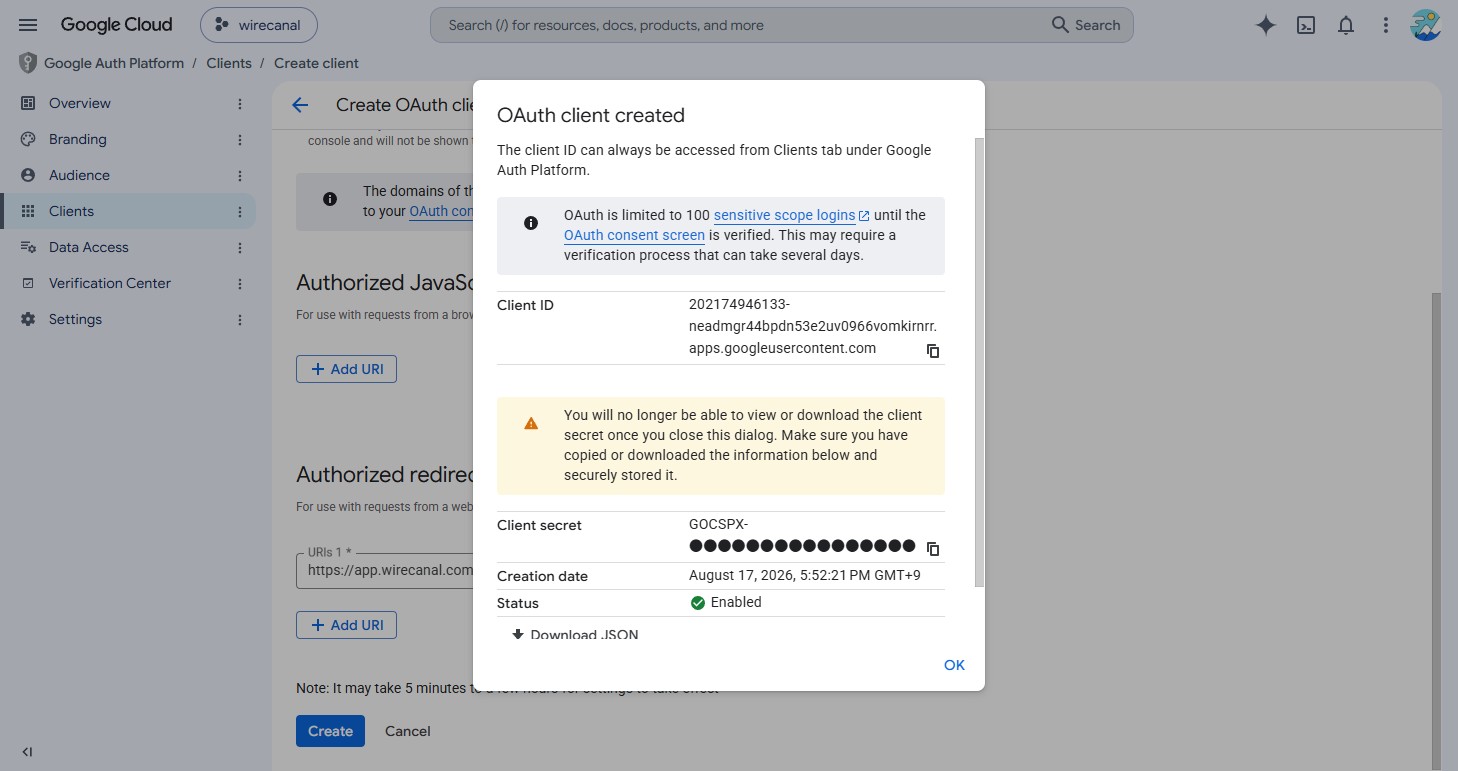
After creation, the client ID and client secret are displayed. The secret is shown only in this dialog, so note it down now (you will paste it into WireCanal in Step 2).
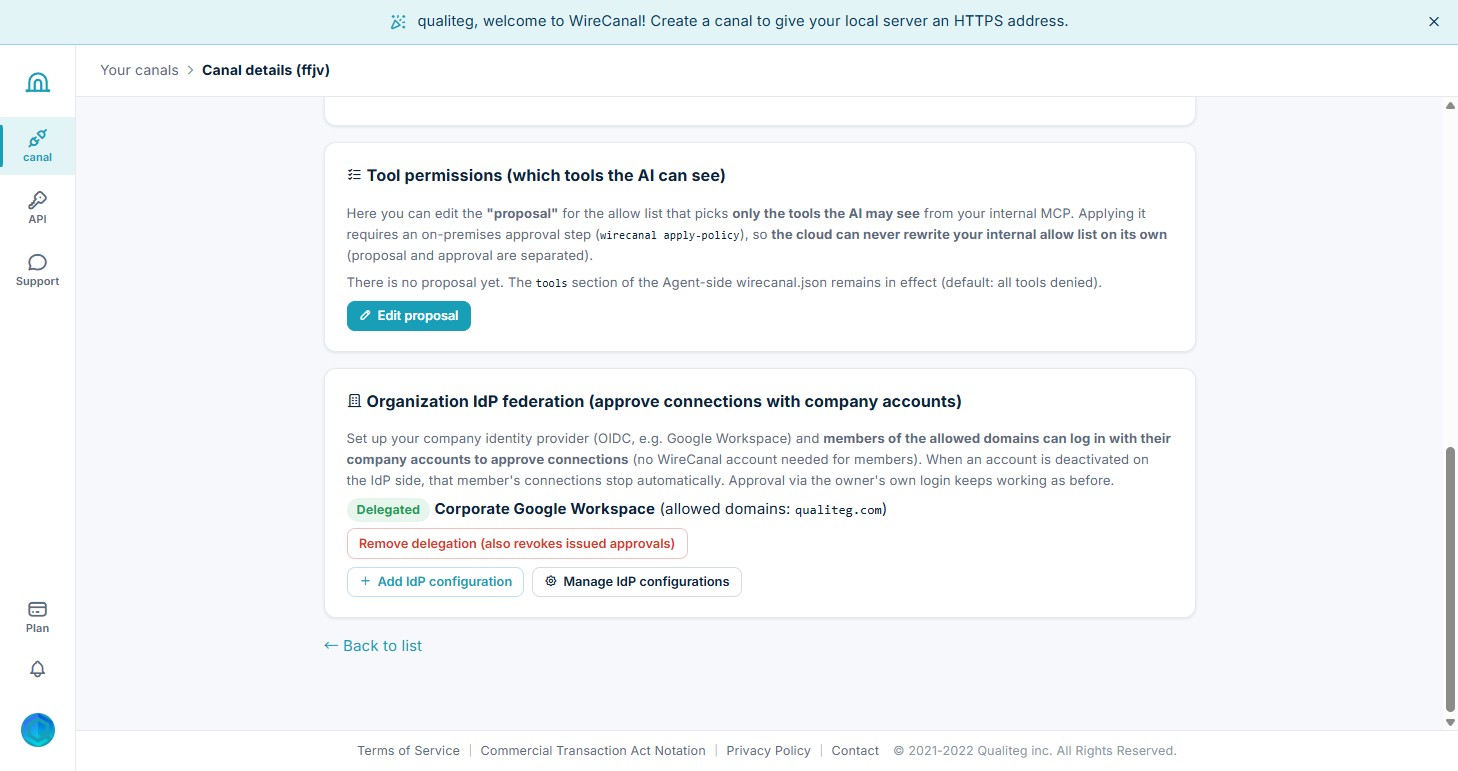
On the "Organization IdP integration" card in the canal's "MCP connection" tab, open "Add IdP configuration", fill in the 4 fields, and save.
https://accounts.google.com (for Google Workspace)example.co.jp)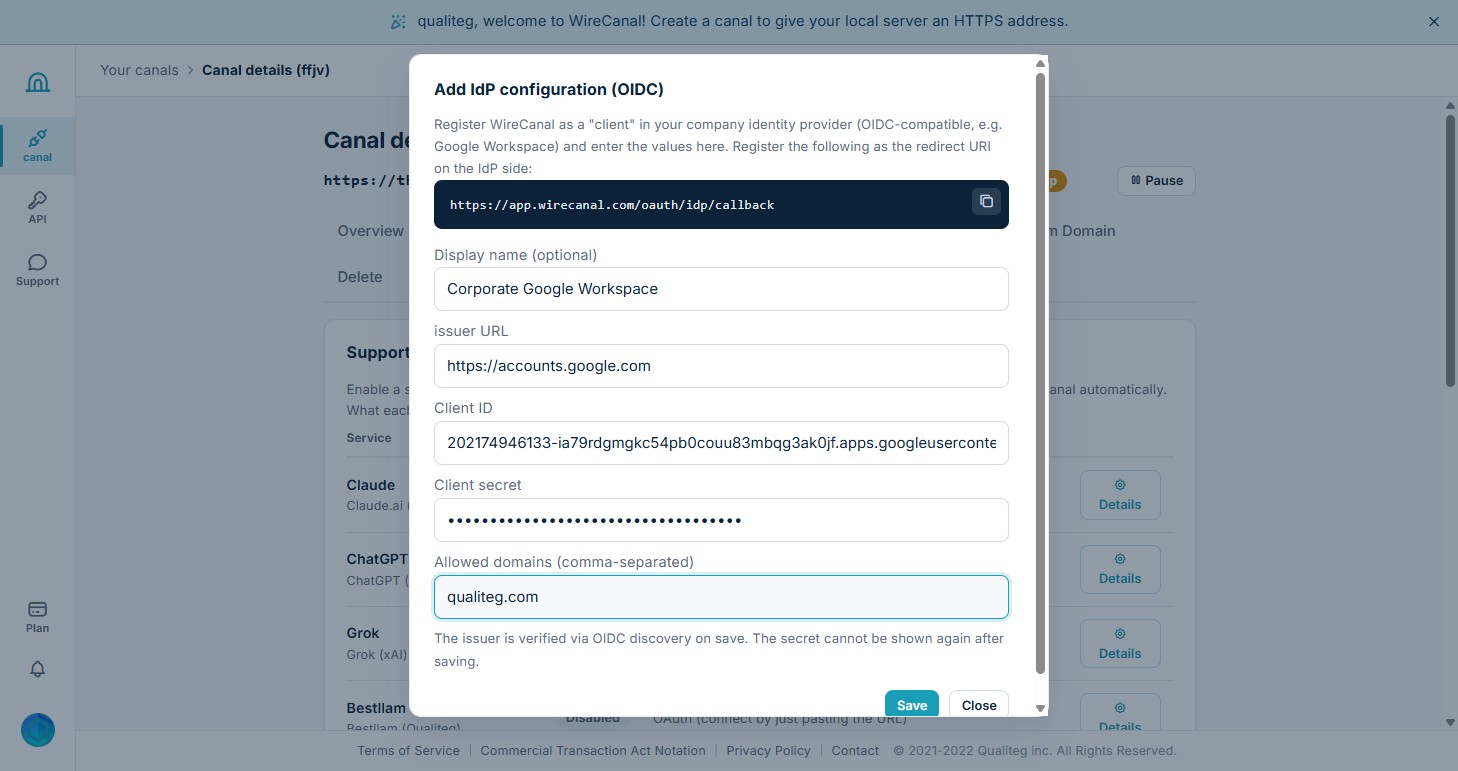
Select the IdP configuration you created and assign it — the card switches to a "Delegated" state. The owner's setup is now complete. From now on, the connection-consent screen for this canal switches to your company's Google login (the owner's own login still works for approvals too).
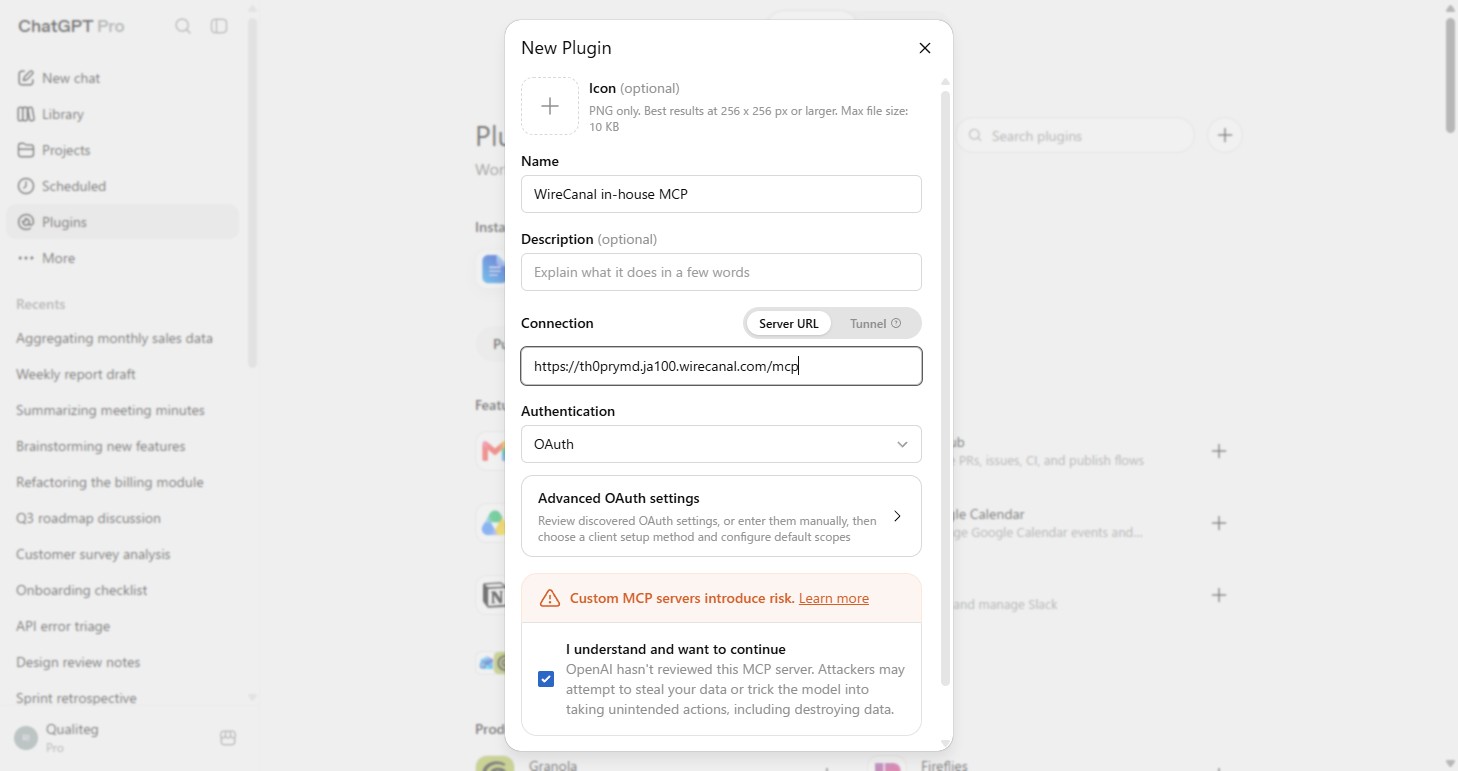
A member simply pastes the canal URL they received from the owner (e.g. https://<hostname>/mcp) into their own AI. For ChatGPT, go to "Plugins" → "Create app", enter a name and the URL, and create it (detailed steps here).
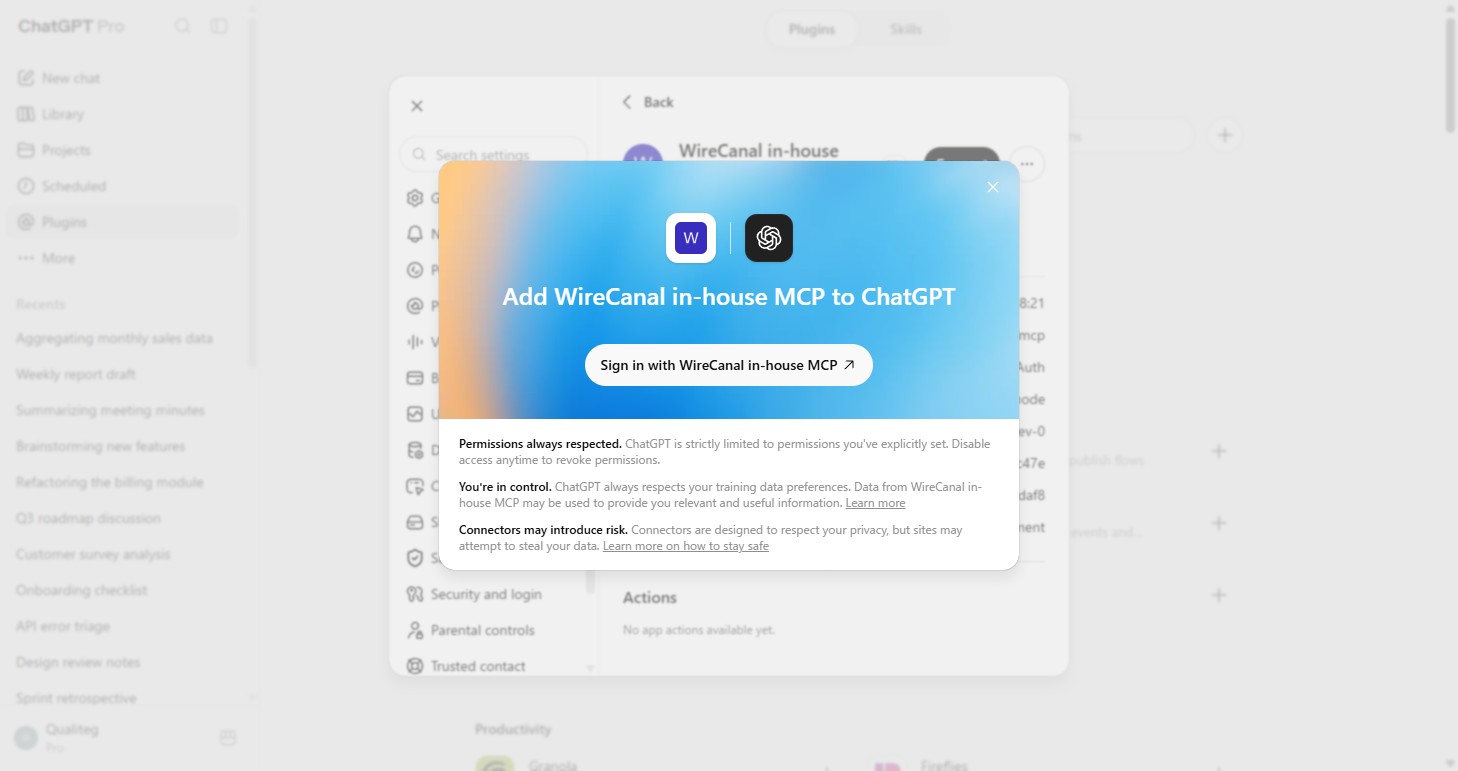
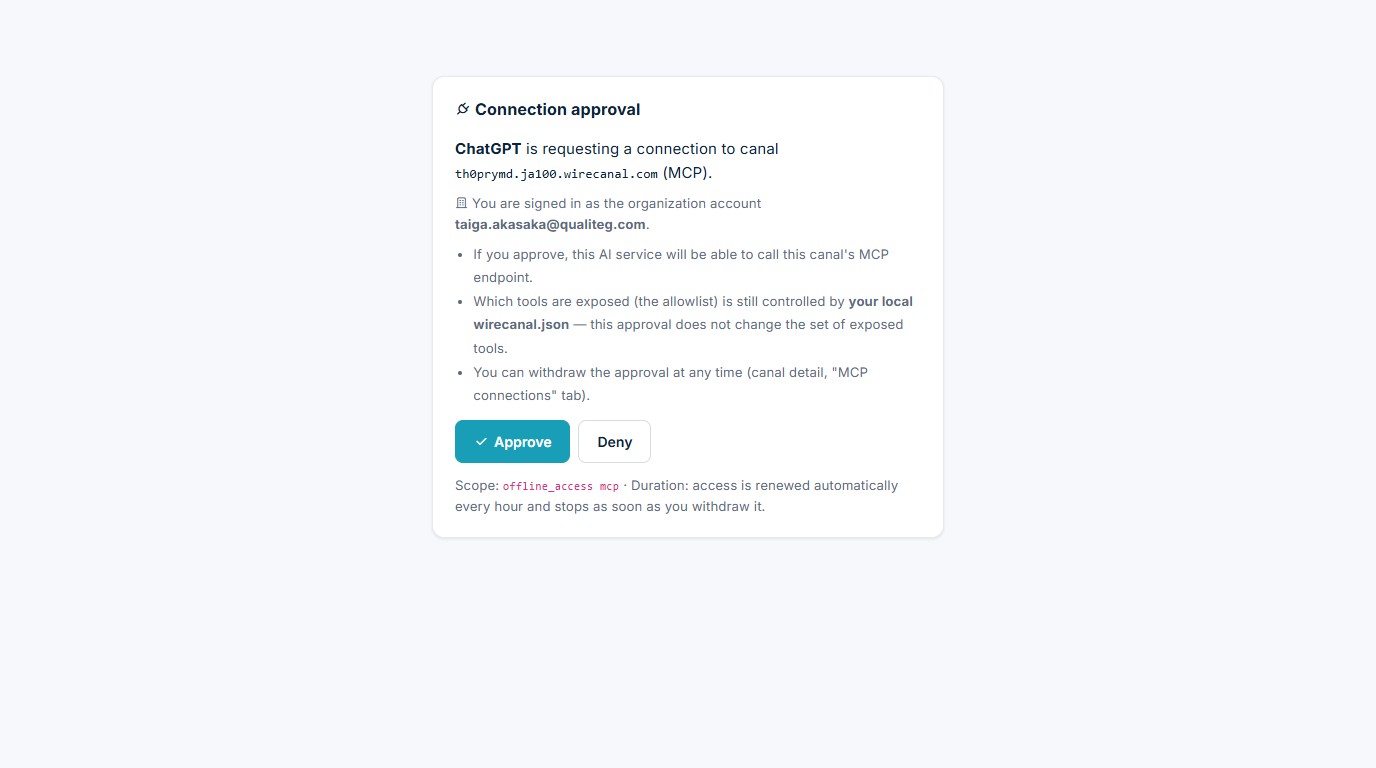
The login screen is now your company's Google login, so log in with your company account. If your account is on the allowed domain, WireCanal's consent screen opens — just click "Approve" and the connection is complete.
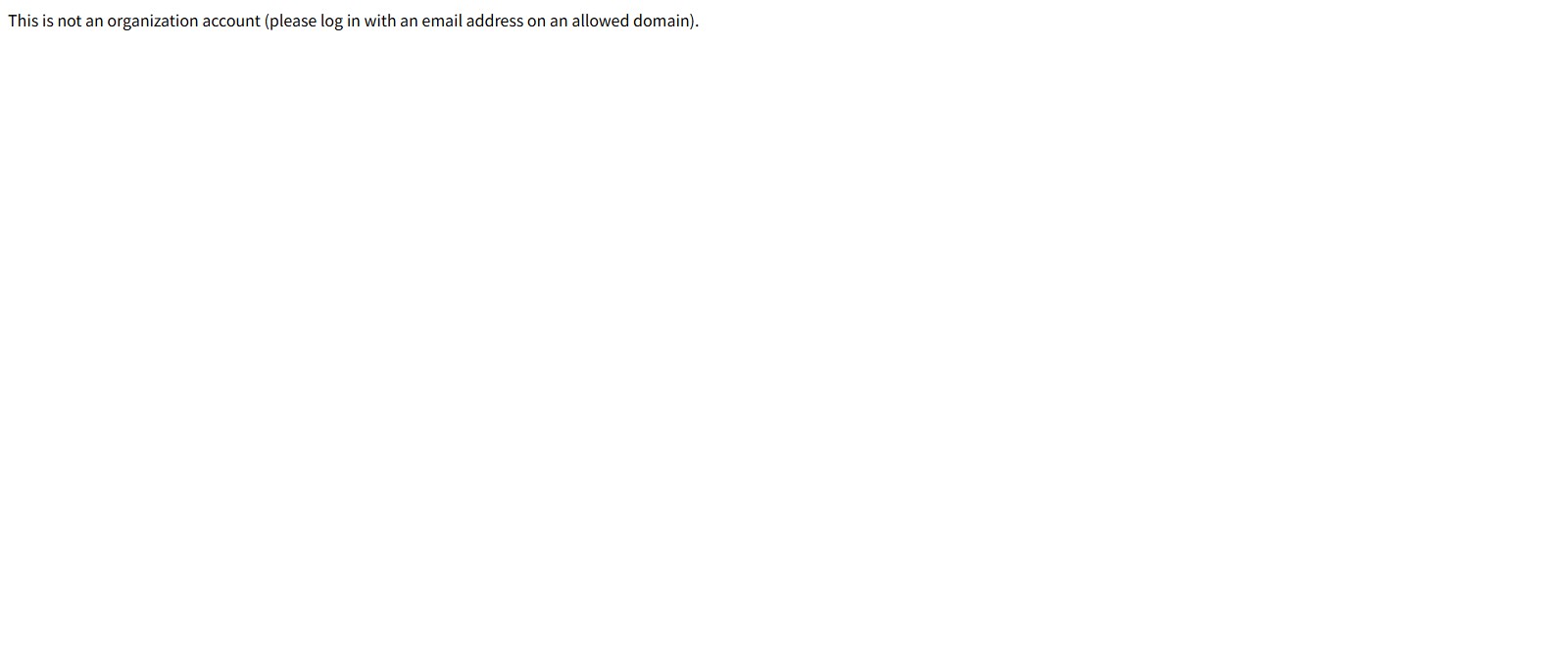
If someone logs in with an account outside the allowed domain (such as a personal Gmail), they are refused as shown below. Who gets in is decided by the allowed domain the owner configured.
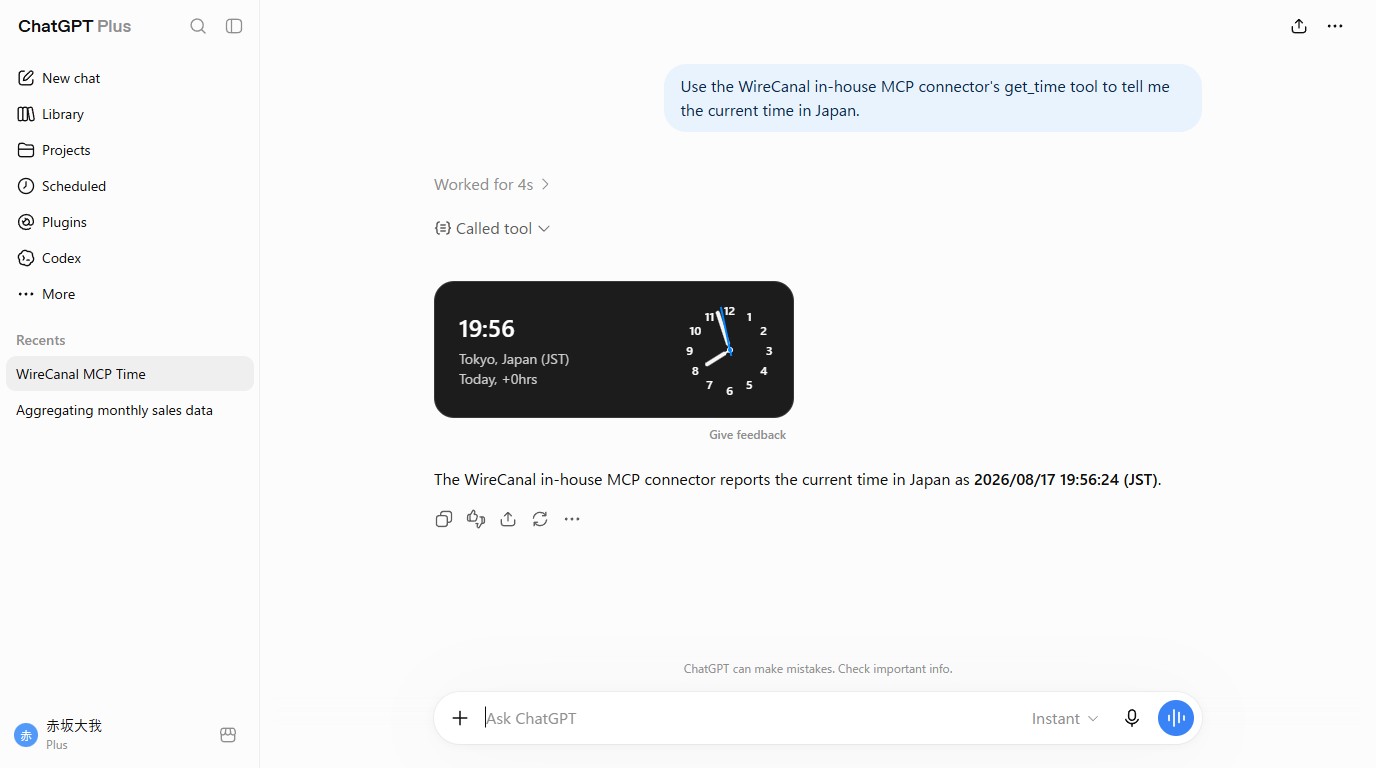
After that, just ask in a chat as usual. The real data returned by your local MCP server is used in the answer.
In companies where the Workspace administrator restricts logins to external apps, you will need the administrator to allow WireCanal's client ID in the admin console (members see a message to that effect when they try to log in).
If you prefer to configure this programmatically, the same can be done through the public API (organization IdP integration endpoints).
Sign-up is free. No credit card required — create your first canal right now.
 WireCanal